


9 Conditional Access Policies - Real-World Practice
In this YouTube video, we prepare groups, named locations, and authentication strengths. We then create 9 conditional access policies to properly protect users, data, devices, and apps.
Author: bha created on 2026-03-06
Thank you
What is Conditional Access?
If you are working with Microsoft 365 security, Conditional Access is one of the most important tools you can master. It is the policy engine inside Microsoft Entra ID that evaluates every sign-in and decides whether access should be granted, denied, or require stronger authentication.In the YouTube video, this concept is not only explained but also demonstrated through nine real-world Conditional Access policies that are actively used in production environments today.
The goal of the video is not theoretical knowledge—it’s practical guidance. If you want to strengthen your Microsoft 365 security posture, avoid common pitfalls, and save hours of troubleshooting, the video walks you through proven policy designs that protect:
- Administrators
- Standard users
- Guest accounts
- Devices
- Cloud applications
All of this is done using features available with Entra ID Plan 1, which is already included in Microsoft 365 Business Premium and Microsoft 365 E3/E5. That means the policies covered in the video are directly applicable for most organizations without requiring additional licenses.
Conditional Access Policies – Preparation
Before we begin building practical Conditional Access policies, a bit of groundwork is required. The video walks through a few essential preparation steps that ensure your Conditional Access environment is clean, structured, and ready for real-world policy deployment. These steps include creating dedicated Entra ID groups, defining named locations, and configuring strong authentication methods.To make this easy to follow, the video uses a simple preparation checklist—summarized visually in the graphic below. It highlights three key building blocks:
- Entra ID groups (static and dynamic)
- Named locations
- Authentication methods
These elements will later be referenced by multiple Conditional Access policies, so having them in place is crucial.
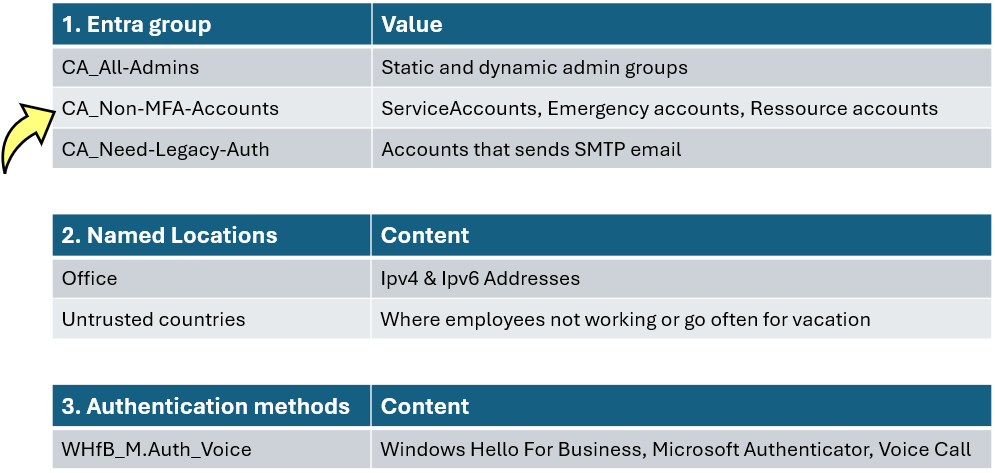
The video demonstrates how to create assigned groups and then introduces the idea of building a dynamic subgroup specifically for identifying service accounts that should not be forced to use MFA.
At this point, an important question comes up:
What are service accounts, and why should they be excluded from MFA?
The video explains this clearly
- Service accounts are non-human identities—often synced from AD
- They run scheduled tasks, automation jobs, scripts, or send emails
- They do not log in interactively, there is no human to approve a prompt
- Enforcing MFA on such accounts would cause automated jobs to fail
- Instead of MFA, these accounts should rely on very strong passwords and restricted sign-in locations
Creation of 9 Conditional Access Policies
With the preparations complete, the video demonstrates how to build 9 Conditional Access policies that form a practical, real-world security baseline for Microsoft 365.These policies cover administrators, standard users, guests, devices, and cloud apps—all while minimizing disruption to legitimate work.
Each policy is created in Report-only mode first.These policies should only be enabled after proper testing, consultation with your security team, and communication with users.
═══
═══
The complete set of policies that the video walks through is:01 Require MFA for admins
02 Require MFA for users, exclude trusted networks
03 Require MFA for guests, exclude trusted locations
04 Require internal network for MFA register
05 Block legacy authentication
06 Block cloud apps for guests, except O365
07 Block access from untrusted countries
08 Limit access for non-compliant Windows devices
09 Limit access for non-compliant iOS+Android devices
Key Highlights From the Policy Creation Walkthrough
The video demonstrates several important concepts while building the policies:
- Using Entra groups to target admins, guests, service accounts, and legacy-apps
- Enforcing strong MFA through authentication strengths
- Excluding emergency access accounts to prevent accidental lockout
- Applying named locations, trusted & untrusted networks and countries
- Applying device-based conditions to require compliant or managed devices
There are other important highlights from the guide to creating policies.
All guest users (policy 03) must complete the MFA registration process prior to gaining access, even if they already use MFA in their home tenant.
Their existing MFA can be trusted by configuring External Identities -> Crosstenant access settings, which allows to honor MFA claims from the guests original organization.
Employees can only register for MFA (policy 04) from a trusted network, such as the office. This prevents attackers from registering their own MFA methods for new accounts (without MFA).
If exceptions are needed during onboarding, the video recommends adding a users phone number directly under their authentication methods rather than excluding them from the policy.
Policies 08 and 09 depend on Intune compliance. The video recommends activating them only after achieving compliance of over 95% to ensure that users are not unintentionally restricted in their access.
This blog provides a general overview, but the complete creation of the guideline is best understood by watching the video itself.
Monitoring MFA Registration and Sign-Ins
A useful feature demonstrated is the What if tool in Conditional Access. It allows you to simulate how active policies — and even policies still in Report-only mode, would apply to a specific user, app, or location.The example in the video clearly shows how different IP addresses or country selections change which policies are triggered.
After MFA enforcement begins, users must authenticate with MFA immediately. Some users may be required to sign in again using MFA, if a policy defines a shorter sign-in frequency. New users or those who have never set up multi-factor authentication (MFA) before will be prompted to register their authentication methods first.
Under Authentication methods -> Activity, you can review MFA usage, registration timestamps, and detailed user registration data. This is helpful for identifying who is ready for enforcement and who may need support.
Finally, the Sign-in logs provide visibility into failed or suspicious attempts. This is the best place to check whether users are experiencing issues.
This is the right place to detect sign-ins coming from countries where no employees work. Frequent attempts from such countries are often automated attacks. If this appears in your logs, it is recommended that you add these countries to named location Untrusted countries, created before.
Conditional Access: Key Takeaways
Multi-factor authentication remains the most effective first line of defense, blocking the vast majority of account-compromise attempts. According to Microsoft, MFA can prevent over 99.9% of attacks on user accounts.The Conditional Access policies shown in the video are based on proven real-world experience. When applied consistently, they create a robust security baseline that protects administrators, employees, guests, devices, and applications—while still maintaining a smooth user experience.
In many M365 environments, we could apply MFA for all users at all locations. This aligns with the Zero Trust model, which teaches us to never assume that internal networks or trusted locations are secure. Never trust, always verify should remain the guiding principle for modern identity protection.
Thank you for contacting us about this topic and M365 in general.
Questions about M365, Azure, or Copilot?
☏ +49 721 66980 610
Write to us,
you can expect an answer on the same or next working day.
you can expect an answer on the same or next working day.
M365 & Azure expertise
✅ M365 License Delivery
✅ Security & Compliance Audit
✅ Reduce attack surface and complexity
✅ Azure Landing Page & Cost Optimization
Expert Support for M365 & Azure
Receive direct access to certified Microsoft security experts at fair and transparent rates (75 - 95 EUR/hour). We can use your ticket system or our support Jira ServiceDesk, see sample ticket.

 Copyright 2018 - 2026 Microsoft 365 Support
Your resolution: , time (de): 17:34:27