


Passwordless Authentication in Microsoft 365
This guide and its related video demonstrate how to implement passwordless authentication in Microsoft 365 using Intune. This method leverages Windows Hello for Business, biometrics and FIDO2 passkeys.
Author: bha created on 2026-04-13
Thank you
Is Passwordless Authentication secure?
Password-based authentication is one of the biggest security risks in Microsoft 365 environments today. Phishing attacks targeting login credentials, MFA bombing attacks, and password reuse remain the primary causes of identity theft.In Microsoft 365, biometric authenticatio (fingerprint or facial recognition) via Windows Hello for Business is considered the gold standard for modern security. This protects your account by replacing a password with a unique cryptographic devicebound method. See the other best options besides Windows Hello for business in Image 1.
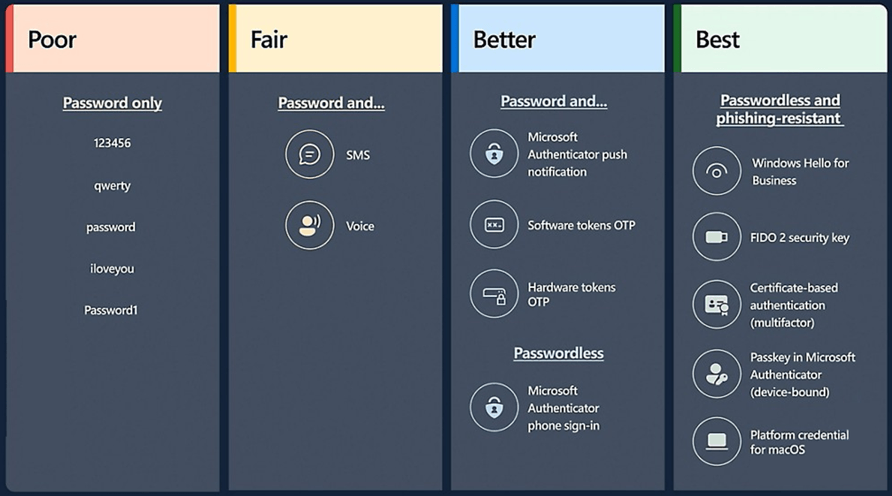
Image 1: Passwords vs. passwordless authentication, source: Microsoft.com
Windows Hello for Business
The video demonstrates:- Intune configuration - Windows Hello for Business (WHfB)
- How to sync Windows 11 with Intune to apply policies faster
- Windows 11 log-on and WHfB rollout with fingerprint and PIN
- Additional Sign-In options using a password and PIN
For a step-by-step demonstration of Intune configuration and enabling WHfB watch the video (at 49s).
Set up Passkey (FIDO2)
The video demonstrates the installation of Passkey (FIDO2):- Intune configuration of Authentication methodes
- iOS (iPhone) configuration for passkey and passwordless sign-in requests
- Sign in to Word 365 with a fingerprint and passkey
For a step-by-step demonstration of Intune configuration enabling Passkey (FIDO2) watch the video (at 172s).
Pre-boot authentication (BitLocker Startup PIN)
The video makes it clear that there is no substitute for the startup PIN in the form of a fingerprint. It demonstrates how the BitLocker PIN login works.The advantages using the startup PIN are:
- Security
A startup PIN protects against offline access if a device is stolen. - Compliance requirements
BSI (Bundesamt für Sicherheit in der Informationstechnik), Germany’s national cybersecurity authority, has recommended the use of a startup PIN since 2021.
The are also drawbacks of using the startup PIN:
- Lack of user acceptance
Some users avoid using the PIN and seldom reboot their computers, which can result in delayed updates and apps. - Attack Surface increases
Users may reuse a PIN for multiple devices. There is an increased risk of PIN theft, for example, from a phone.
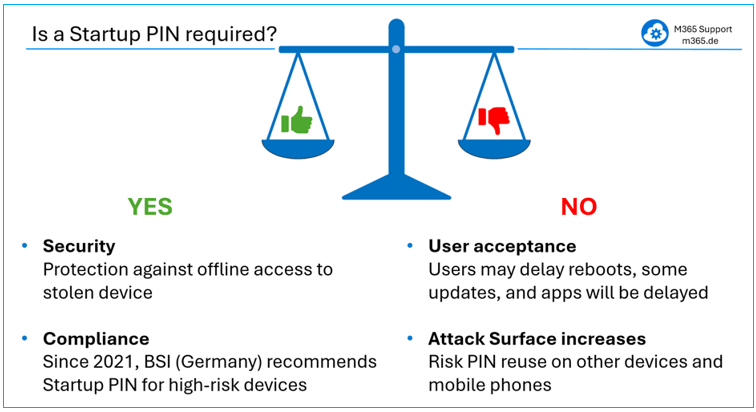
Image 2: Pros and Cons of the BitLocker Startup PIN
═══
═══
Based on a risk assessment, our recommendation for BitLocker startup PIN usage is:- Startup PIN only for high-risk users
Use a BitLocker Startup PIN only for high-risk users or devices such as executives, administrators, and employees with access to sensitive data. - Rely on WHfB with fingerprint authentication for most users
For the majority of users, rely on WHfB with biometric authentication. This ensures strong authentication while maintaining a high level of user friendliness. - Implement Zero Trust + Strong Conditional Access
Focus your primary security controls where most attacks actually happen, implement Zero Trust principles and strong Conditional Access.
Configuration of Startup PIN
The simplest way to set up a Startup PIN is to integrate the configuration shown in image 1 into the existing Intune BitLocker policy. Once the setting is in place, users have the option to configure a startup PIN themselves as shown in image 2. This can be done by selecting 'Change how the drive is unlocked at startup'.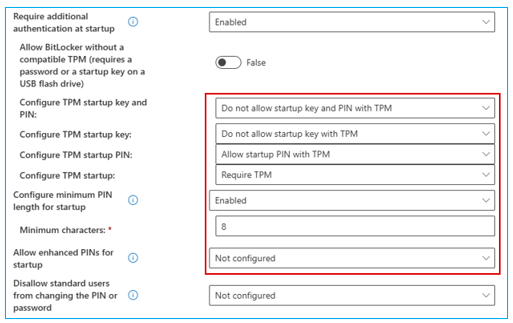
Image 3: Intune configuration for Startup PIN
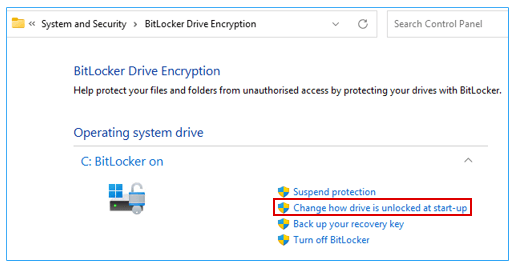
Image 4: User sets the BitLocker Startup PIN
Technically, it is also possible to force the startup pin prompt to appear after Windows login for users who have not yet configured one as shown in image 3. However, enforcing this behavior is significantly more complex. It usually requires multiple PowerShell scripts running in both user and system context.
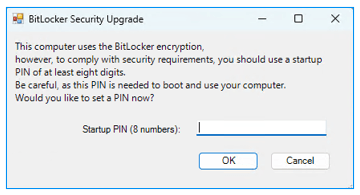
Image 5: Startup PIN is forced on Windows logon
This task depends heavily on your specific M365 environment and goes beyond what can be covered in the video or this blog post.
Wir können Sie bei dieser Aufgabe unterstützen, um sicherzustellen, dass die Start-PIN benutzerfreundlich ist (in der Sprache des Benutzers) und nur für eine bestimmte Entra-Gruppe und nur für Benutzer ohne Start-PIN gilt.
Working without a Password and PIN in Microsoft 365
The video showed how to configure and use Microsoft 365 without using a password.We can therefore conclude the following:
- Work passwordless
Working passwordless is both secure and userfriendly. Windows Hello for Business and passkeys allow us to move away from traditional passwords without reducing security. - No PIN required
For day-to-day work, no PIN is required for user sign-in. With the exception of startup pins for high-risk devices, users can rely on biometrics. In practice, fingerprint authentication offers a very good balance between security, reliability, and user experience. - Improve M365 Security
True protection is achieved by implementing Zero Trust principles and strong Conditional Access, which control identity, device trust, and access to data.
Watch the Videos on:
Thank you for contacting us about this topic and M365 in general.
Questions about M365, Azure, or Copilot?
☏ +49 721 66980 610
Write to us,
you can expect an answer on the same or next working day.
you can expect an answer on the same or next working day.
M365 & Azure expertise
✅ M365 License Delivery
✅ Security & Compliance Audit
✅ Reduce attack surface and complexity
✅ Azure Landing Page & Cost Optimization
Expert Support for M365 & Azure
Receive direct access to certified Microsoft security experts at fair and transparent rates (75 - 95 EUR/hour). We can use your ticket system or our support Jira ServiceDesk, see sample ticket.

 Copyright 2018 - 2026 Microsoft 365 Support
Your resolution: , time (de): 10:28:16